
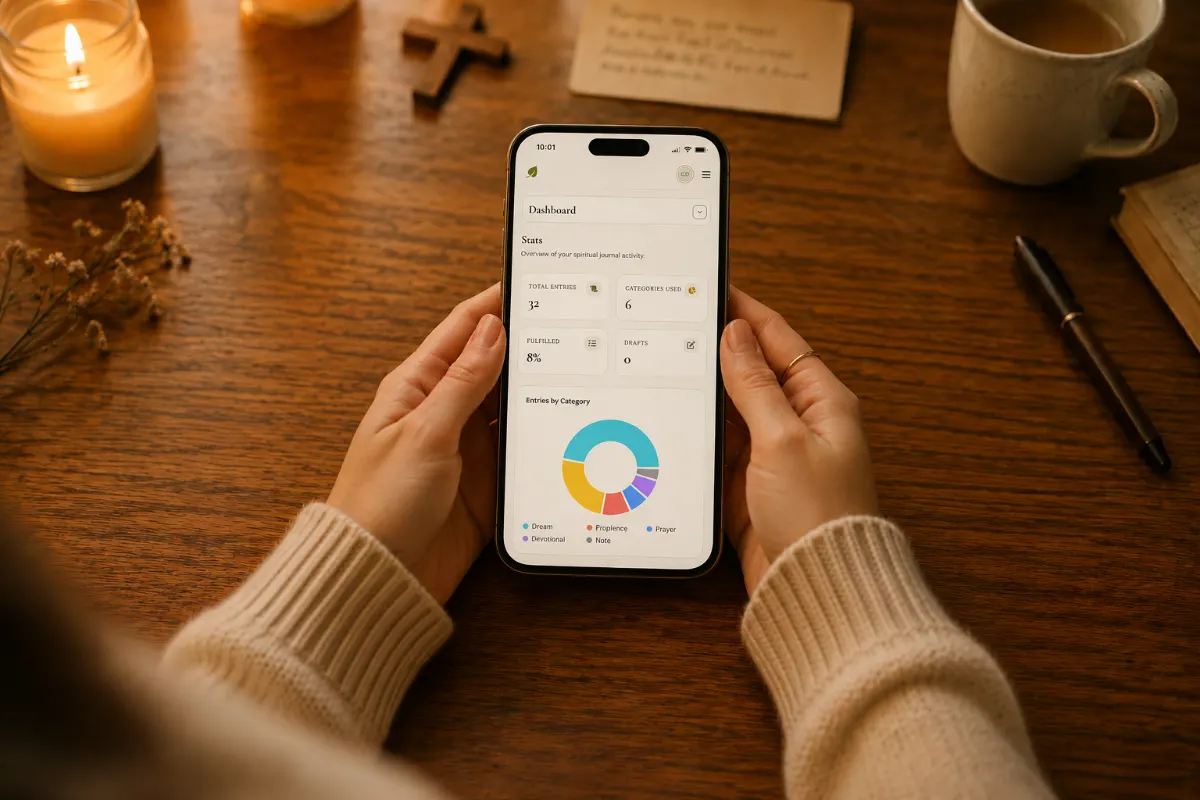
The Journal in your Pocket
Losing dream details happens all the time
It’s 3:47 in the morning.
You sit up in the dark. The dream is still there - you can feel the shape of it, the strange room, the voice that said the thing you’ve waiting to hear. You know what happens next. You blink twice, you reach for the water, and by the time your feet touch the floor it's already going away.
You will not remember it by sunrise.
The notebook is in the other room. The pen is somewhere in the drawer.
But your phone is right there on the nightstand. And if My Christian Journal is on your home screen, you are two taps away from holding the dream still long enough to write it down.
Yes, it works on your phone
This is the part we want you to know first: the journal was built for your phone as much as your laptop. Every screen — entries, the timeline, the journey, the prayer wall — reshapes itself to whatever you open it on. You can write a full entry from your couch, the back row at church, the parking lot at pickup, the kitchen while the kettle heats.
You don't need an app from the App Store. You just need an icon on your home screen. Putting the journal on your home screen takes about fifteen seconds. Do it once and it's there for good — same as any other app.
On iPhone (Safari)
Open Safari and go to mychristianjournal.com. Sign in if you haven't yet.
Tap the Share button at the bottom of the screen — the square with the arrow pointing up out of it.
Scroll down in the share sheet and tap Add to Home Screen.
Name it whatever you want (we like just Journal) and tap Add.
The icon appears on your home screen with a white background and a green olive leave. Tap it next time and it opens straight to your journal — no browser tabs, no address bar, no friction.
On Android (Chrome)
Open Chrome and go to mychristianjournal.com. Sign in if you haven't.
Tap the three-dot menu in the top right.
Tap Add to Home screen (or Install app on some phones — both do the same thing).
Confirm the name and tap Add.
The icon lands on your home screen. From now on it opens like any other app.
Your voice becomes the words
Here's the part we love most.
When your cursor is sitting in a journal entry — the title, the body, the prayer field, anywhere there's a place to type — your phone's keyboard already knows how to listen.
On iPhone, look for the small microphone icon on the keyboard (usually bottom-right, next to the spacebar). Tap it once. Start talking. Watch the words appear in the field as you speak.
On Android, it's the same — tap the microphone icon on Gboard (often in the top corner of the keyboard or under a press-and-hold on the comma). Tap, speak, stop when you're done.
For a woman who prays aloud, who hears the Lord in the rhythm of her own voice — this matters. Your most natural mode is your voice. The keyboard is the slow part. Dictation lets the entry come out at the speed it actually arrives.
Wake up with a dream, tap the icon, tap the cursor into the body, tap the microphone, and tell it to the journal. It will be there when you come back for it after coffee.
Why this matters more than it sounds
The journal you actually keep is the one that's within reach.
Not the leather-bound one on the bookshelf you mean to get to. Not the document on the laptop you'll open tonight. The one that's already in your hand when the moment lands — when the casual conversation with the co-worker is confirming your calling, when the prayer is forming in the middle of a sentence, when the word He gave you in the parking lot is still echoing.
We built My Christian Journal so the moment doesn't have to wait for the desk. Put it on your phone's home screen. Use your voice. Capture the thing while it's still fresh.
He's still speaking. You just need a way to write it down before the day starts pulling.